Hello,
This is how I set up Wazuh on a single Debian host using Docker. Wazuh is an open source security platform that handles threat detection, log analysis, and endpoint monitoring. I’ll go through the installation, changing the default passwords, and how I deployed a Windows agent.
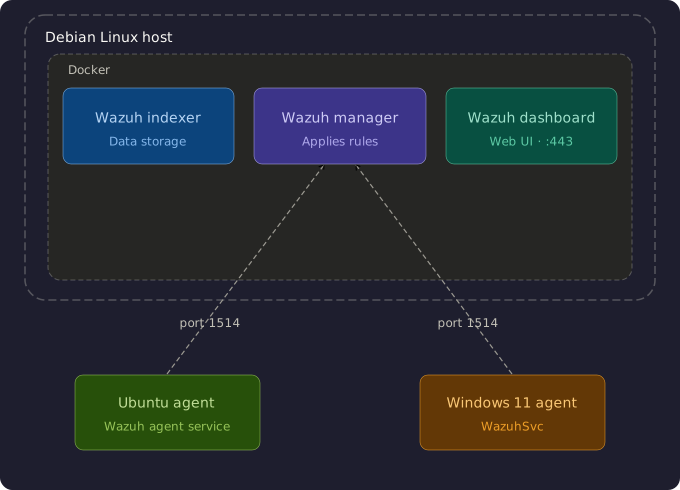
I’m running three containers on one Debian host. The indexer handles data storage, the manager processes events and applies rules, and the dashboard is the web UI I access on port 443. Agents on other machines report back to the manager on port 1514.
Prerequisites
- Debian Linux host running as root
- Docker and Docker Compose installed
- At least 4 CPU cores, 8GB RAM, and 50GB of disk
1. Fix Docker Repo Duplicate (if needed)
I ran into a duplicate source error with apt. If you hit the same thing, just remove the extra entry:
rm /etc/apt/sources.list.d/docker.list
apt update
2. Set Kernel Parameter
Wazuh’s indexer (OpenSearch) needs a higher virtual memory limit. I set it and made it persist on reboot:
sysctl -w vm.max_map_count=262144
echo "vm.max_map_count=262144" >> /etc/sysctl.conf

3. Clone the Repo
git clone https://github.com/wazuh/wazuh-docker.git -b v4.14.3
cd wazuh-docker/single-node/
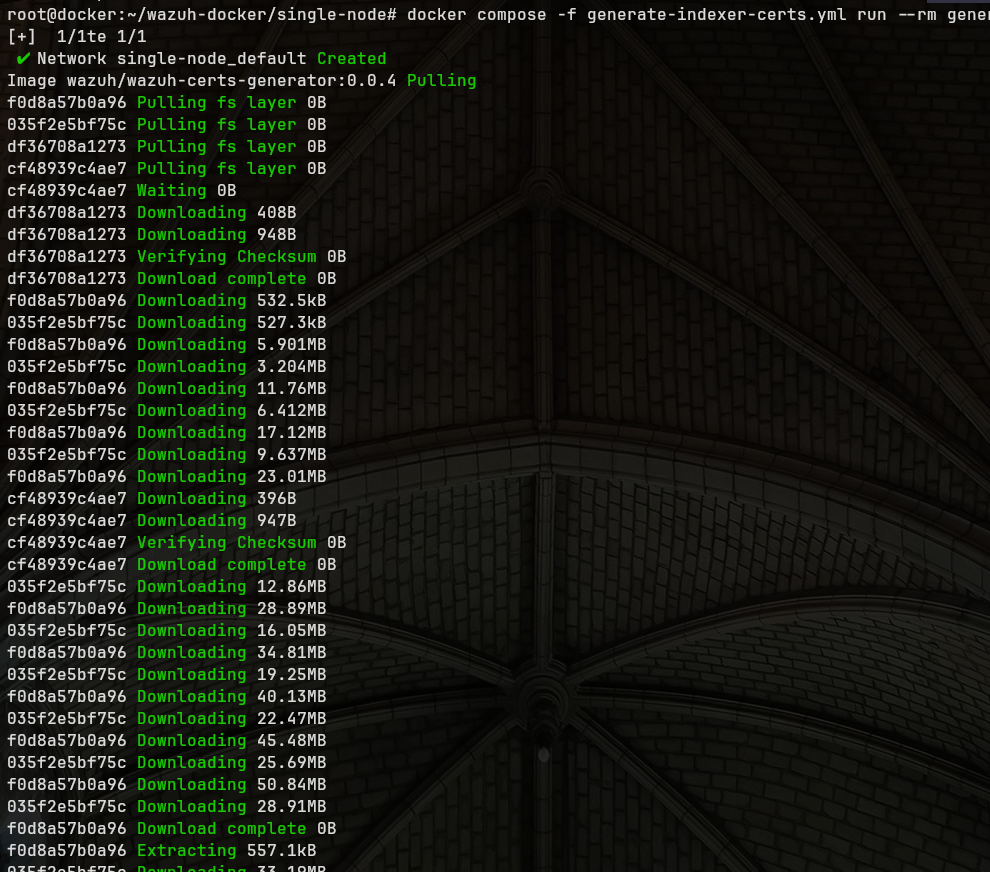
4. Generate Certificates
docker compose -f generate-indexer-certs.yml run --rm generator
5. Start Wazuh
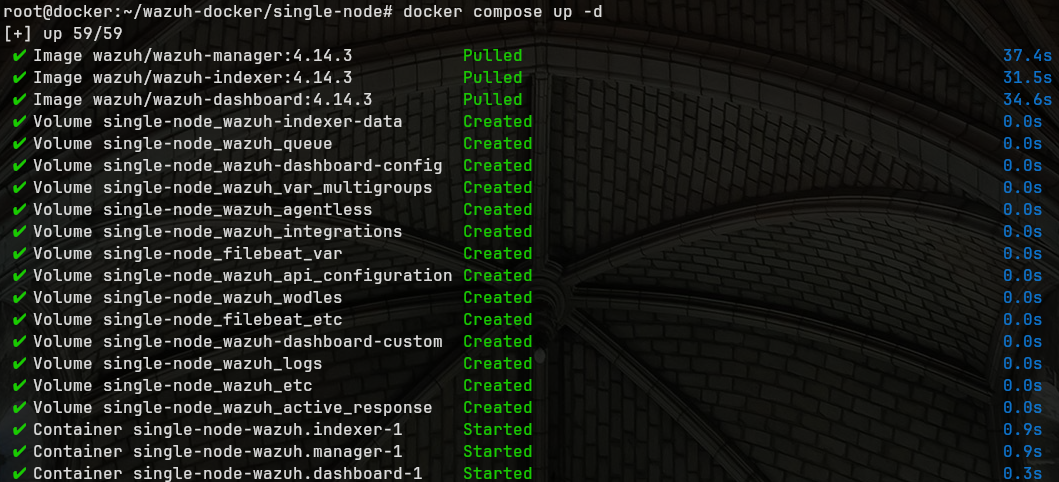
docker compose up -d

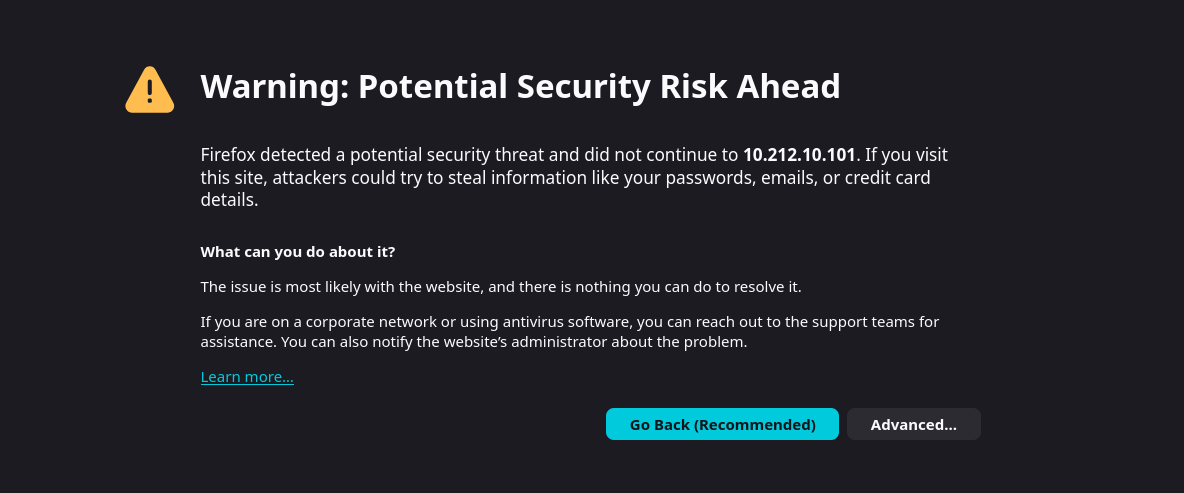
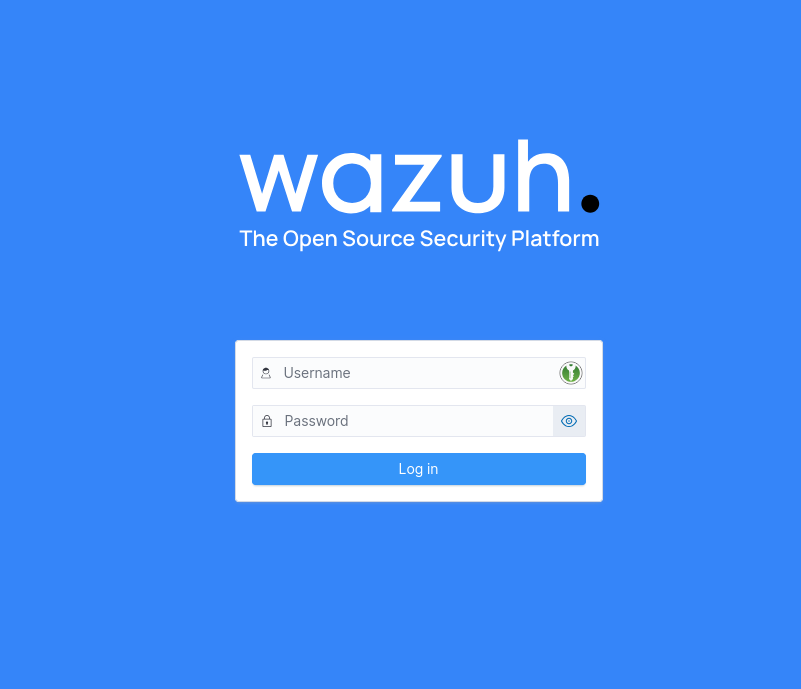
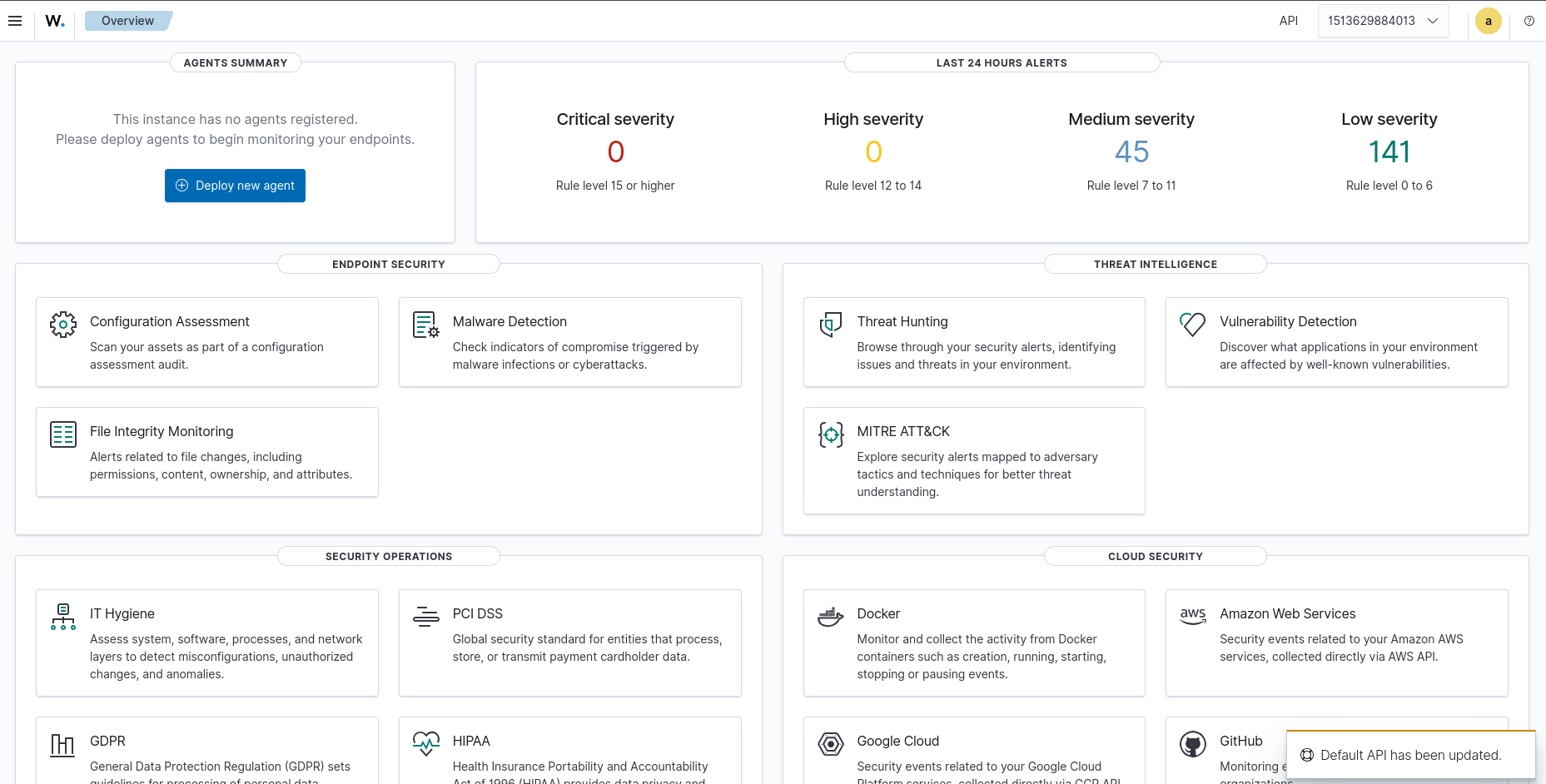
Once it’s up, I accessed the dashboard at https://<your-host-ip>. You’ll get a browser SSL warning since it uses a self-signed cert. Click Advanced and proceed.
The default credentials are admin / SecretPassword. I’d strongly recommend changing these before doing anything else.
Changing the Default Password
Admin (Dashboard) Password
1. I stopped the stack first:
docker compose down

2. Then generated a new password hash:
docker run --rm -ti wazuh/wazuh-indexer:4.14.3 bash /usr/share/wazuh-indexer/plugins/opensearch-security/tools/hash.sh

3. I pasted the hash into config/wazuh_indexer/internal_users.yml:
admin:
  hash: "<YOUR_NEW_HASH>"

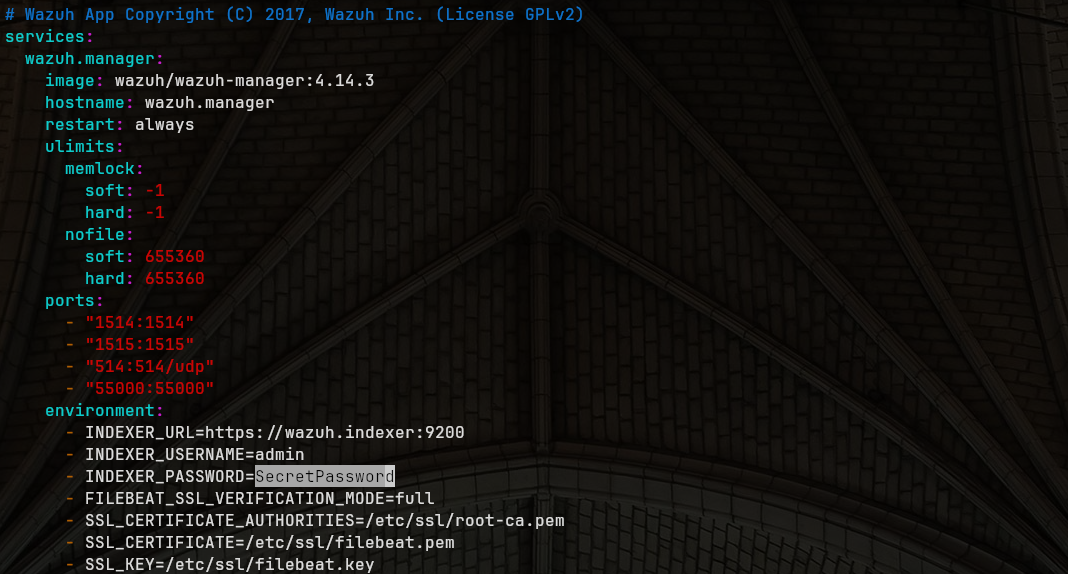
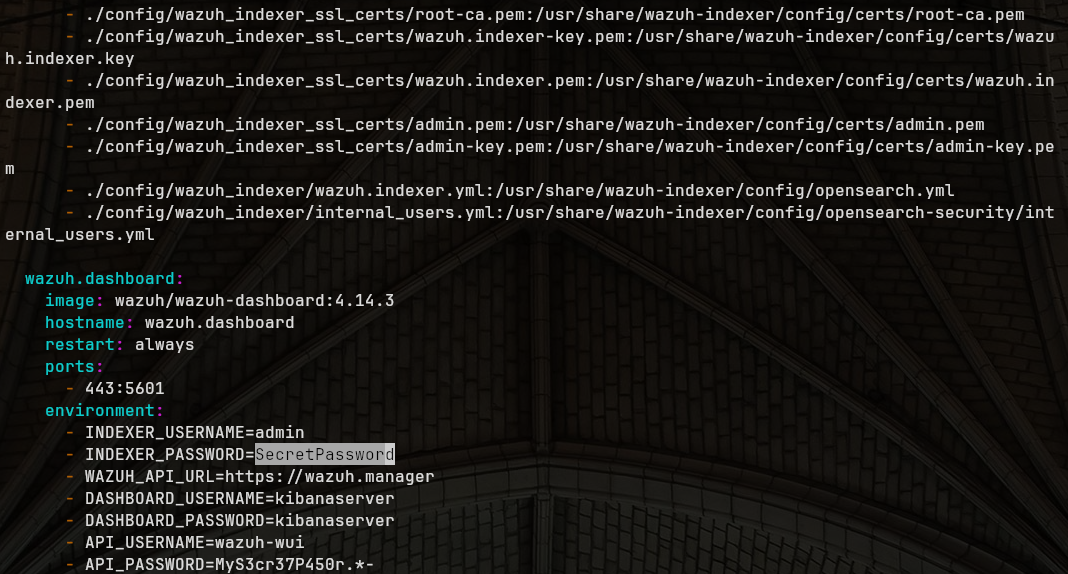
4. I also updated the plaintext password in docker-compose.yml. Replace every occurrence of SecretPassword with your new one. If your password has a $ in it, double it (e.g. My$$Pass) or it’ll break.
5. Started it back up:
docker compose up -d

6. Then I exec’d into the indexer container to apply the security config:
docker exec -it single-node-wazuh.indexer-1 bash

Inside the container I ran:
export INSTALLATION_DIR=/usr/share/wazuh-indexer
export CONFIG_DIR=$INSTALLATION_DIR/config
CACERT=$CONFIG_DIR/certs/root-ca.pem
KEY=$CONFIG_DIR/certs/admin-key.pem
CERT=$CONFIG_DIR/certs/admin.pem
export JAVA_HOME=/usr/share/wazuh-indexer/jdk

bash /usr/share/wazuh-indexer/plugins/opensearch-security/tools/securityadmin.sh -cd $CONFIG_DIR/opensearch-security/ -nhnv -cacert $CACERT -cert $CERT -key $KEY -p 9200 -icl

After exiting the container I was able to log in with the new credentials.
API User (wazuh-wui) Password
1. I updated config/wazuh_dashboard/wazuh.yml:
hosts:
  - 1513629884013:
      url: "https://wazuh.manager"
      port: 55000
      username: wazuh-wui
      password: "YourNewPassword"
2. I also updated API_PASSWORD in docker-compose.yml for both the manager and dashboard sections.
3. Then restarted:
docker compose down
docker compose up -d
Keep in mind the API password must be 8-64 characters and include uppercase, lowercase, a number, and a symbol.
Deploying a Windows Agent
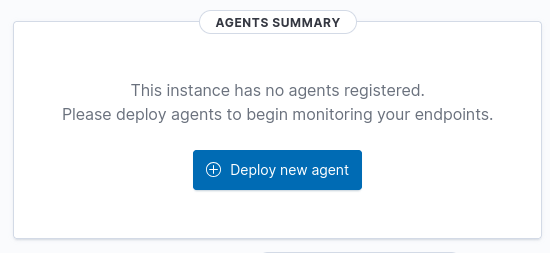
I went to Server Management → Endpoints Summary → Deploy new agent in the dashboard.
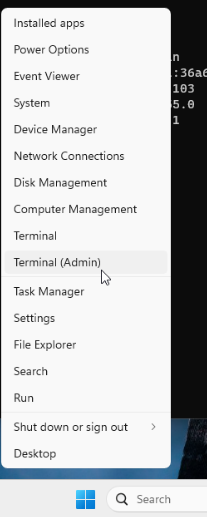
I opened PowerShell as Administrator by right-clicking the Start menu.
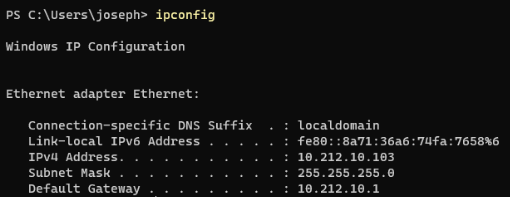
I ran ipconfig first to grab my IP so I knew what to use as the manager address.
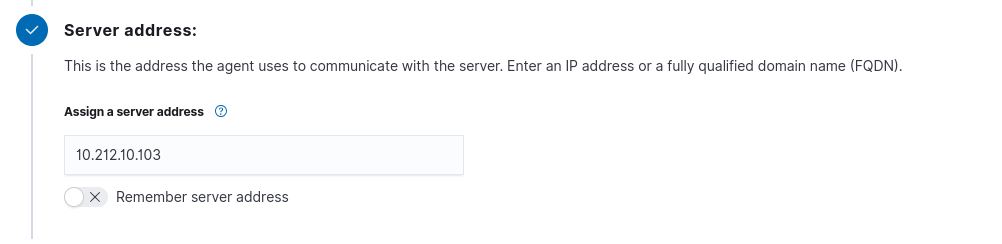
I filled in the server address in the deploy wizard and ran the install command:

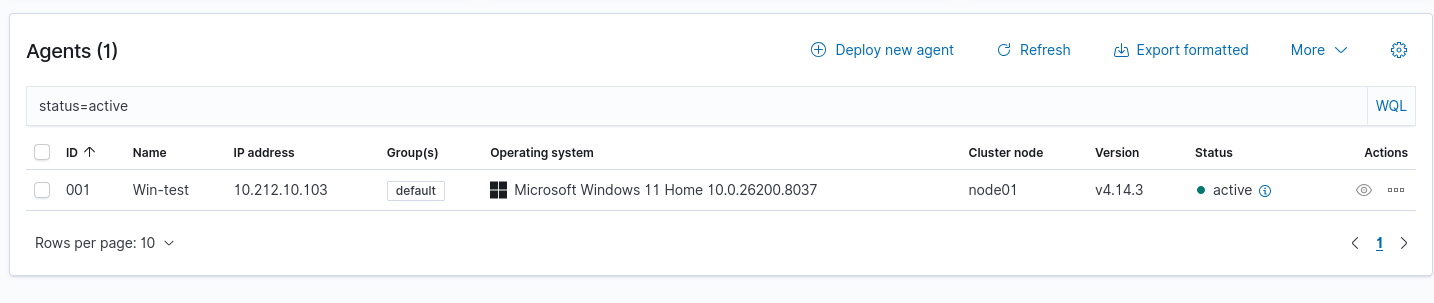
Invoke-WebRequest -Uri https://packages.wazuh.com/4.x/windows/wazuh-agent-4.14.3-1.msi -OutFile $env:tmp\wazuh-agent; msiexec.exe /i $env:tmp\wazuh-agent /q WAZUH_MANAGER='<YOUR_HOST_IP>' WAZUH_AGENT_NAME='Win-Test'


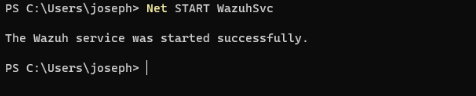
Then started the service:
NET START WazuhSvc
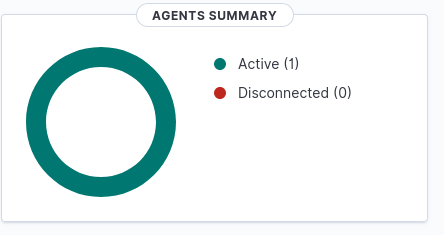
It showed up as active in the dashboard within a minute.
Troubleshooting
- Make sure port 1514 is open inbound on your Debian host
- On Windows, always run PowerShell as Administrator
- Agents can take a minute or two to appear after starting
- Check Windows agent logs at
C:\Program Files (x86)\ossec-agent\ossec.log
Last modified on 2026-03-16